Last Updated on September 15, 2026
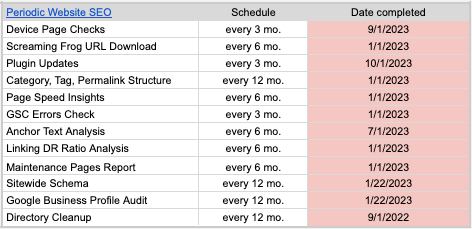
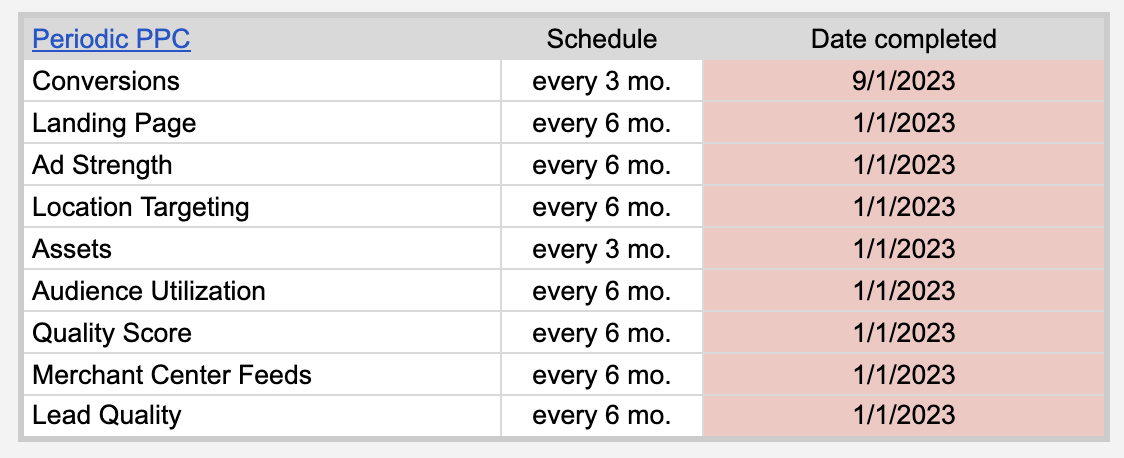
The bottom two sections in the Client Info section are for periodic “SEO and PPC” checks. In order to make sure all audits, analyses, reports, and other checks are kept up to date, we will track them there. If any of the items have gone unchecked for too long, their “Date Completed” cell will turn red, indicating that it is time to check them again.
MCs may assign you a task where you perform one or more of these checks. However, if you notice a check has expired and have time to work on it in your allotted task time, feel free to complete the check.
SEO Periodic Checks
Go through three different types of pages on the site (e.g., homepage, product page, blog page) and check the page on desktop and mobile. Make sure everything works and looks correct.
The goal of this task is to ensure that (1) the URL structure in place is optimized with both users and SEO in mind and (2) to ensure that a list of acceptable categories & tags has been created. The goal is also to ensure it is being used consistently. This has a lot to do with site architecture, a sitemap and how the website is organized. Additional training on this task can be found here.
A summary of what you will be doing:
- Check the website for the current permalink structures
- Pages, products, portfolios, custom pages, custom posts, etc.
- Uses a default or custom WordPress setting
- Pay attention to parent pages, categories, etc.
- Posts
- Allows modifiable WordPress setting
- Pay attention to categories
- Make a sitemap to outline the site architecture and current URL naming convention
- Determine if any changes are needed
- Determine what blog categories and tags will be used
- Ensure they are being used consistently
Check the blog categories and tags. Are they relevant, consistent, and useful to the user? Do all the blogs have categories? Are the category pages optimized?
The goal of this task is to identify if there are any general crawl errors Google has identified concerning the website as a whole. Log in to Google Search Console. Check the following tabs, then record what you find in the Client Master.
- Pages
- Soft 404
- Not found (404)
- Redirect error
- Server error (5xx)
- Blocked by robots.txt
- Blocked due to other 4xx issue
- Blocked due to access forbidden (403)
- Indexed, though blocked by robots.txt
- Excluded by noindex tag
- HTTPS
- Manual actions
- Security issues
The goal of this task is to verify if the anchor text ratios of a client’s website are similar to that of most standard websites.
For this task, you will use the “Anchor Text Analysis” template in the Template Gallery. Please ensure that the new report is saved in the proper client folder.
Please follow the instructions in that template for how to complete the report. For further training on anchor text, check out this article by The Hoth.
The goal of this task is to verify if the distribution of the authority of linking domains to a client’s website are similar to that of most standard websites. For this task you will use ahrefs and the Referring Domains DR Report (found in the Sebo Template Gallery). You will run this report for the client and 2-3 competitors. The general trend you are looking for is that as DR (Domain Rating) increases, the number of links decreases. Generally, there should be many more links in the DR10-30 range than in the DR50+ range.
Filling Out the Referring Domains Report:
- Go to ahrefs.com.
- Fill out the url on the top.
- Navigate to the Referring Domains section found in the left menu.
- Click on “Dofollow” on the top.
- Click “+ More Filters”. Under the “Backlink” section, select “Backlink Type” and then “Regular Links”
- Click Show Results
- Export the data.
- Copy and paste all the numbers under the DR column to the corresponding column in the template
Repeat the process with 3 competitors.
In the Client Master, you will find 2 different tabs – “Cycle Pages” and ”Maintenance Pages”. Once a page has been taken through all 6 SEO stages in the “Cycle Pages” tab, the page URL and its Exact Match KW should be moved to the ”Maintenance Pages” tab. There, we can track the Exact Match KW over time.
Every ~6 months, you will go through each page on the “Maintenance Pages” tab and record the position of the Exact Match KW. Be sure to preserve historical data by creating a new column each time you do this (as opposed to pasting over previous rankings)
Schema markup is a type of structured data that results in rich snippets in the Google SERPs. Schema is code that can be applied both to individual pages, as well as to a template sitewide. The goal of this task is to check or apply a sitewide schema template to the site. This can be done using a tool such as SchemaPro for WordPress. This tool allows you to signal Google to potentially show additional information in the SERPs for: images, videos, reviews, products, FAQ’s, Article headings, sitelinks, etc.
While this template can be applied sitewide, and a template should be created for each page/post type (pages, blog posts, product pages, etc.), the template pulls from the elements provided on each individual page. For example… a template could be applied which would display the page’s featured image in Google. But if there is no featured image added to the page itself, then the schema template won’t do anything. This task is simply to verify that the sitewide schema is set up properly and/or yielding the intended results in the SERPs.
Additional training for SchemaPro can be found here.
The goal of this task is to review a client’s Google Business Profile and identify what items are missing or need improvement. This can help serve as a guide for some local SEO tasks to do in the future. This is a manual review. This is most important the first year you run it (when a client is brand new to Sebo Marketing).
First, you need to have access to the Google Business Profile. Then, you follow the Template “*Client Name* Google Business Profile Audit – Periodic Checks” (located with our other templates in Sheets) and give the profile a grade/score. The audit includes checking for things like: correct NAP, a business description, business categories, services and descriptions, photos, photos sorted into categories, posts, etc. The MC will use this audit when determining future strategy and task assignments.
The goal of this task is to ensure that all NAP directory listings (name, address, phone number) around the internet match the one in a client’s Google Business Profile. This is an order you place from a service like TheHOTH. There are directories throughout the internet that contain a local client’s NAP (name, address, phone number). There’s often conflicting information (wrong or changed phone numbers or addresses). A service like this runs an audit to find as many directories as it can where the client’s business is listed. Then, it strives to get the inaccurate listings corrected.
Look through the current updates and let Jonny or the MC know if there are any plugins that are out of date.
PPC Periodic Checks
In the Sebo Template Gallery, find the template titled “*Client Name* Conversions- Periodic Check”. Make a copy of it and fill it out (remember to rename it). Save it to the client folder.
The purpose of this task is to make sure we fully understand which conversion actions we’re tracking, how they’re set up, and whether they’re accurate. Simply fill out each of the columns in the template.
In the Sebo Template Gallery, find the template titled “*Client Name* Landing Pages – Periodic Check”. Make a copy of it and fill it out (remember to rename it). Save it to the client folder.
Review active landing pages and determine whether or not they are properly set up and optimize. Simply fill out each of the columns in the template.
**Note: This check is not concerned with historical landing page performance data, so you don’t need to use the Landing Pages report in Google Ads. We only want to be looking at active landing pages.
In the Sebo Template Gallery, find the template titled “*Client Name* Ad Strength – Periodic Check”. Make a copy of it and fill it out (remember to rename it). Save it to the client folder.
Review and record the ad strength of active ads in the template.
In the Sebo Template Gallery, find the template titled “*Client Name* Location Targeting – Periodic Check”. Make a copy of it and fill it out (remember to rename it). Save it to the client folder.
Review each campaign and record which locations are being targeted.
In the Sebo Template Gallery, find the template titled “*Client Name* Assets – Periodic Check”. Make a copy of it and fill it out (remember to rename it). Save it to the client folder.
List each ad group. Determine which assets are being used, and at what level (account, campaign, ad group).
In the Sebo Template Gallery, find the template titled “*Client Name* Audience Utilization – Periodic Check”. Make a copy of it and fill it out (remember to rename it). Save it to the client folder.
List each ad group. List which (if any) audiences are being targeted, and which are being observed).
If there isn’t a document for the client already: In the Sebo Template Gallery, find the template titled “*Client Name* Quality Score – Periodic Check”. Make a copy of it and fill it out (remember to rename it). Save it to the client folder.
Make a copy of the most recent tab. Name it “{Current Month Year}. Make sure the keyword list is accurate (adding or removing where necessary), and record the quality score for each active keyword. Be sure not to delete old tabs, we want them there for historical data.
In the Sebo Template Gallery, find the template titled “*Client Name* Quality Score – Periodic Check”. Make a copy of it and fill it out (remember to rename it). Save it to the client folder.
- Make sure that Merchant Center is connected to Google Ads
- Data Manager > Merchant Center
- List each Asset Group
- List all of the products that the asset group should be targeting. You can be general if it makes sense (i.e. if the asset group is supposed to be targeting “flashlights”, you can just put flashlights. If it’s only supposed to be targeting “blacklight flashlights”, put “blacklight flashlights”. You don’t have to list out all of the product IDs or anything).
- Check the box if the correct products are being targeted.
If there is ANYTHING wrong with the targeting (e.g. the target category is “flashlights” but not all of the flashlights are being targeted OR you’re targeting headlamps and flashlights, don’t check the box).
Go through leads (form submissions, phone calls, or wherever else possible) received in the last 6 months and find the real/junk ratio.
Gravity Forms, Formidable, CF7, WebFlow Forms, etc.
Find the form builder’s form submission repository and export all entries received in the last 6 months. Find the ratio of real/junk leads (when in doubt, air on the side of “real” and ask the MC if necessary).
CallRail
Go to CallRail → Activity and set up the filters to where you are viewing “All First-Time Callers who came from Google Ads in the last 6 Months”. Go through as many call recordings as possible to verify whether or not the leads are legitimate. If it will take a significant amount of time to do so (longer than 15-20 minutes), reach out to the MC/FFM about increasing task quantity for this task.