
Last Updated on May 12, 2022
Pages
A page in WordPress usually refers to the page post type. It is one of the default pre-defined WordPress post types.
WordPress started out as simple blogging tool which allowed users to write posts. In the year 2005, Pages were introduced in WordPress version 1.5 to allow users to create static pages that were not part of their blog posts. For example, an about page, contact page, legal info, etc.
Some of the key differences between posts and pages are:
- Posts are timely content part of a series of posts in a blog. Pages are static one-off type of documents which are not tied to the blog’s reverse chronological order of content
- Pages can be hierarchical, which means a page can have sub pages, for example a parent page titled “About us” can have a sub-page called “Our history”. On the other hand posts are not hierarchical.
- By default posts in WordPress can be sorted into taxonomies Categories and Tags. Pages do not have categories or tags
- Pages can utilize custom page templates. Posts can not utilize this feature by default in WordPress.
- WordPress posts are displayed in RSS feeds while Pages are excluded from feeds.
There is no limit on how many pages you create in WordPress and it is possible to create a website with only pages and not using posts at all. Even though pages are supposed to have static content, but that does not mean users can not update them. Pages can be updated as often as user want to update them.
Users can also use a page to be the static front page of their website and have their blog posts displayed on another page of the site. To choose static front page and blog page, a user need to enable static front page on Settings » Reading under ‘Front page displays’ option.
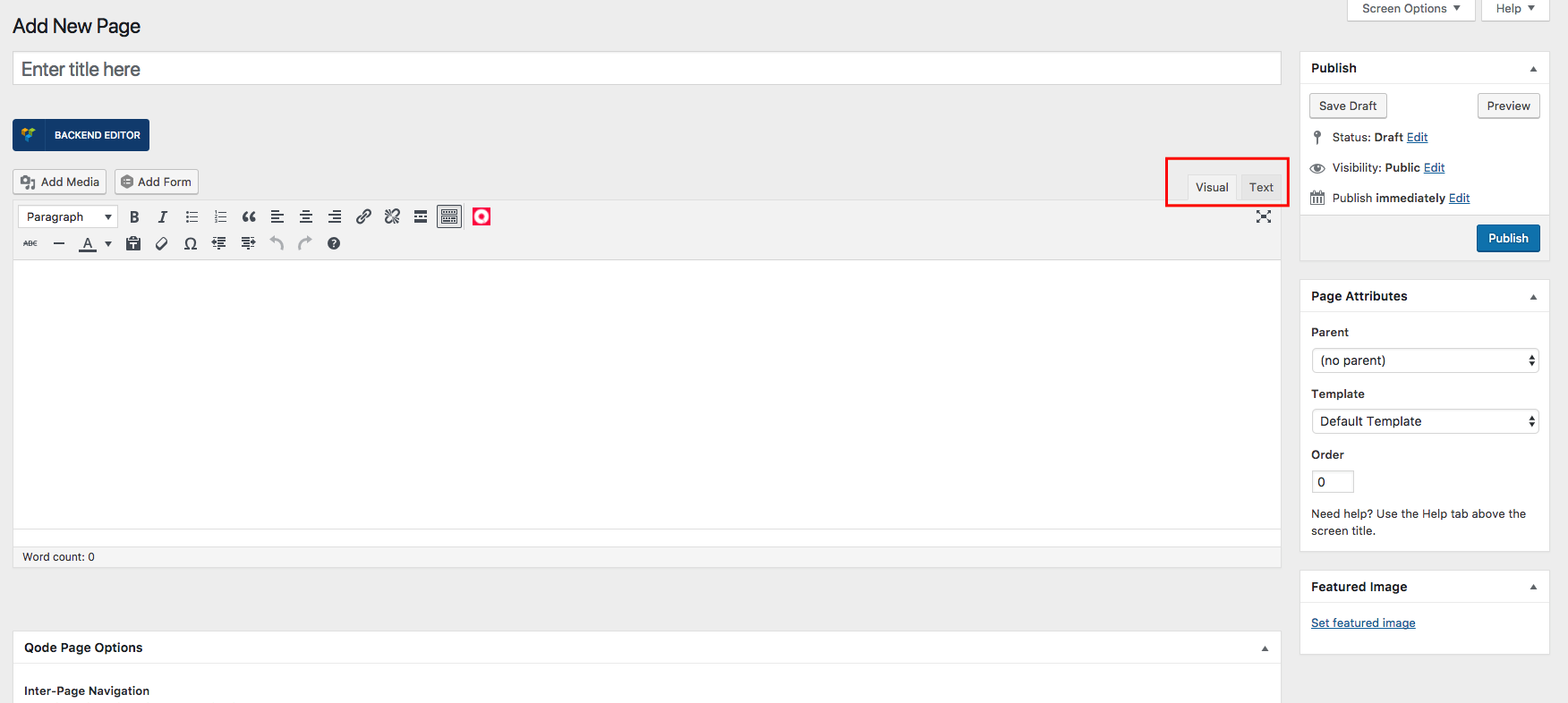
The screenshot below shows what the page editor looks like. The highlighted area (Visual/Text) allows you to switch between visual editor and text editor. When you are on visual editor, you don’t have to know any HTML code. Just use the preset options above the text field to edit the content. However it looks here, it will look roughly the same on the front-end depending on the site styles. The visual editor is also known as a WYSIWYG editor which stands for “What you see is what you get”. The Text editor allows you to edit the html.
What is the Difference Between Posts vs. Pages in WordPress
Source Credit: http://www.wpbeginner.com/beginners-guide/what-is-the-difference-between-posts-vs-pages-in-wordpress/
Often WordPress beginners get confused between posts and pages. By default, WordPress comes with two content types, posts and pages. As a beginner, you are probably wondering what is the difference between them? It seems to have similar fields in the dashboard. It seems to look the same on the website. Why do I need both? When should I use posts? When should I use pages? In this article, we will explain the difference between posts vs. pages in WordPress.
Posts
If you are using WordPress as a blog, then you will end up using posts for majority of your site’s content. Posts are content entries listed in reverse chronological order on your blog’s home page. Due to their reverse chronological order, your posts are meant to be timely. Older posts are archived based on month and year. As the post gets older, the deeper the user has to dig to find it. You have the option to organize your posts based on categories and tags.
Because WordPress posts are published with time and date in mind, they are syndicated through the RSS feeds. This allows your readers to be notified of the most recent post update via RSS feeds. Bloggers can use the RSS feeds to deliver email broadcasts through services like Aweber or MailChimp. You can create a daily and weekly newsletter for your audience to subscribe to. The very timely nature of posts make it extremely social. You can use one of the many social sharing plugins to allow your users to share your posts in social media networks like Twitter, Facebook, Google+, LinkedIn etc.
Posts encourage conversation. They have a built-in commenting feature that allows users to comment on a particular topic. You can go to your Settings » Discussion to turn off comments on older posts if you like.
Pages
Pages are meant to be static “one-off” type content such as your about page, privacy policy, legal disclaimers, etc. While the WordPress database stores the published date of the page, pages are timeless entities. For example, your about page is not suppose to expire. Sure you can go back and make updates to it, but chances are you will not have about page 2012, about page 2013 etc. Because there is no time and date tied to pages, they are not included in your RSS feeds by default. Pages are not meant to be social in most cases thus does not include social sharing buttons, or comments.
You don’t want users to comment on your contact page, or your legal disclaimers page. Just like you probably don’t want others to tweet your privacy policy page in most cases.
Unlike posts, pages are hierarchical by nature. For example, you can have a sub pages within a page. A key example of this in action would be our Blueprint page. This feature allows you to organize your pages together, and even assign a custom template to them.
WordPress by default comes with a feature that allows you create custom page templates using your theme. This allows developers to customize the look of each page when necessary. In most themes, post and pages look the same. But when you are using your page to create a landing page, or a gallery page, then this custom page templates feature comes in very handy.
Pages also have this archaic feature called Order which lets you customize the order of pages by assigning a number value to it. However this feature is extended by plugins like Simple Page Ordering that allows you to drag & drop the order of pages.
Posts vs. Pages (Key Differences)
The differences we list below definitely have exceptions. You can use plugins or code snippets to extend the functionality of both content types. Below is the list of key differences by default.
- Posts are timely vs. Pages are timeless.
- Posts are social vs. Pages are NOT.
- Posts can be categorized vs. Pages are hierarchical.
- Posts are included in RSS feed vs. Pages are not.
- Pages have custom template feature vs. Posts do not.
Frequently Asked Questions
How Many Posts and/or Pages can I have?
You can have as many posts and/or pages that you want. There is no limit on the number of posts or pages that can be created.
Are there any SEO advantages to one or the other?
Search engines like content to be organized. Timeless content is considered to be more important however there is a lot of priority given to latest timely content. In short, there may be a difference, but as a beginner you do not need to worry about it. Focus on making your site organized for the user.
Future Video Goes Here
Custom Post Types
Custom post types are content types like posts and pages. Since WordPress evolved from a simple blogging platform into a robust CMS, the term post stuck to it. However, a post type can be any kind of content. By default, WordPress comes with these post types:
- Post
- Page
- Attachment
- Revision
- Nav Menu
You can create your own custom post types and call them whatever you want. For example if you run a movie review website, then you would probably want to create a movie reviews post type. This post type can have different custom fields and even its own custom category structure. Other examples of post types are: Portfolio, Testimonials, Products, etc.
Media
Media is a tab in your WordPress admin sidebar which is used to manage user uploads (images, audio, video, and other files). Under the Media menu, there are two screens. The first screen Library lists all the files in the media library. These files can be edited and deleted from the library. The second screen is Add New, which allows users to upload files. Remember users can also upload media (images, videos, etc) while writing a post or page. However, the Add New link under allows users to upload files without attaching them to a specific post or page.
When an image is uploaded, WordPress creates several file sizes of the image. The default sizes are full-size, large, medium, and thumbnail. Depending on the theme installed, there may be additional images sizes created as well. When you add an image to a page, it is wise to make sure that you choose the right size of image. Example: If you upload a 4000px image but the image only loads in a 400px box you are loading a massive image in a small amount of space and it will take a long time for that image to load. In this case, it would be better to choose the “medium” or “large” size than “full-size”.
Another tip when uploading images is to compress images prior to uploading them. Using an image compressor such as tinypng.com you can dramatically reduce the image file size without decreasing the quality of the image (at least to the human eye) which will help with page load times. You can even install tinypng.com plugin (or another plugin) to the website and it will auto compress the images for you when you upload the images.
Future Video Goes Here