
Last Updated on June 12, 2026
Google Search Console is a free service offered by Google that helps you monitor and maintain your site’s presence in Google Search results. You don’t have to sign up for Search Console for your site to be included in Google’s search results, but doing so can help you understand how Google views your site and optimize its performance in search results.
Monitor your site’s performance in Google Search results:
- Make sure that Google can access your content
- Submit new content for crawling and remove content you don’t want shown in search results
- Create and monitor content that delivers visually engaging search results
- Maintain your site with minimal disruption to search performance
- Monitor and resolve malware or spam issues so your site stays clean
Discover how Google Search—and the world—sees your site:
- Which queries caused your site to appear in search results?
- Did some queries result in more traffic to your site than others?
- Are your product prices, company contact info, or events highlighted in rich search results?
- Which sites are linking to your website?
- Is your mobile site performing well for visitors searching on mobile?
Search Console Overview
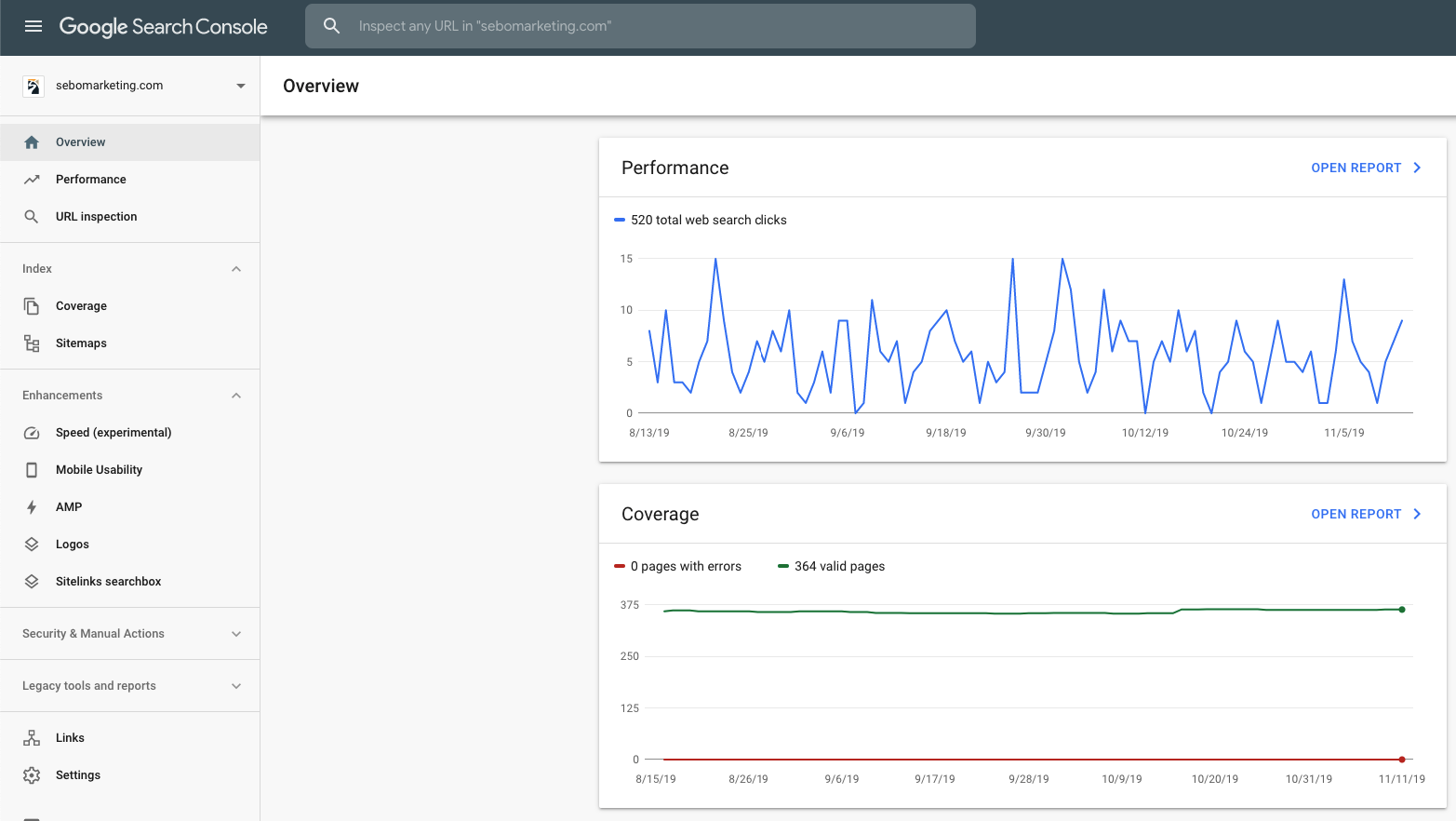
The overview page shows a summary of your performance on Google Search. Visit this page to see a summary of your most important metrics and notifications, including search performance, index coverage, and mobile usability metrics. If your property has enhancements such as AMP pages or search enhancements, you will also see information about those features. Visit this page for a high-level overview of how your property is performing, and any critical issues that need to be addressed.
Performance report
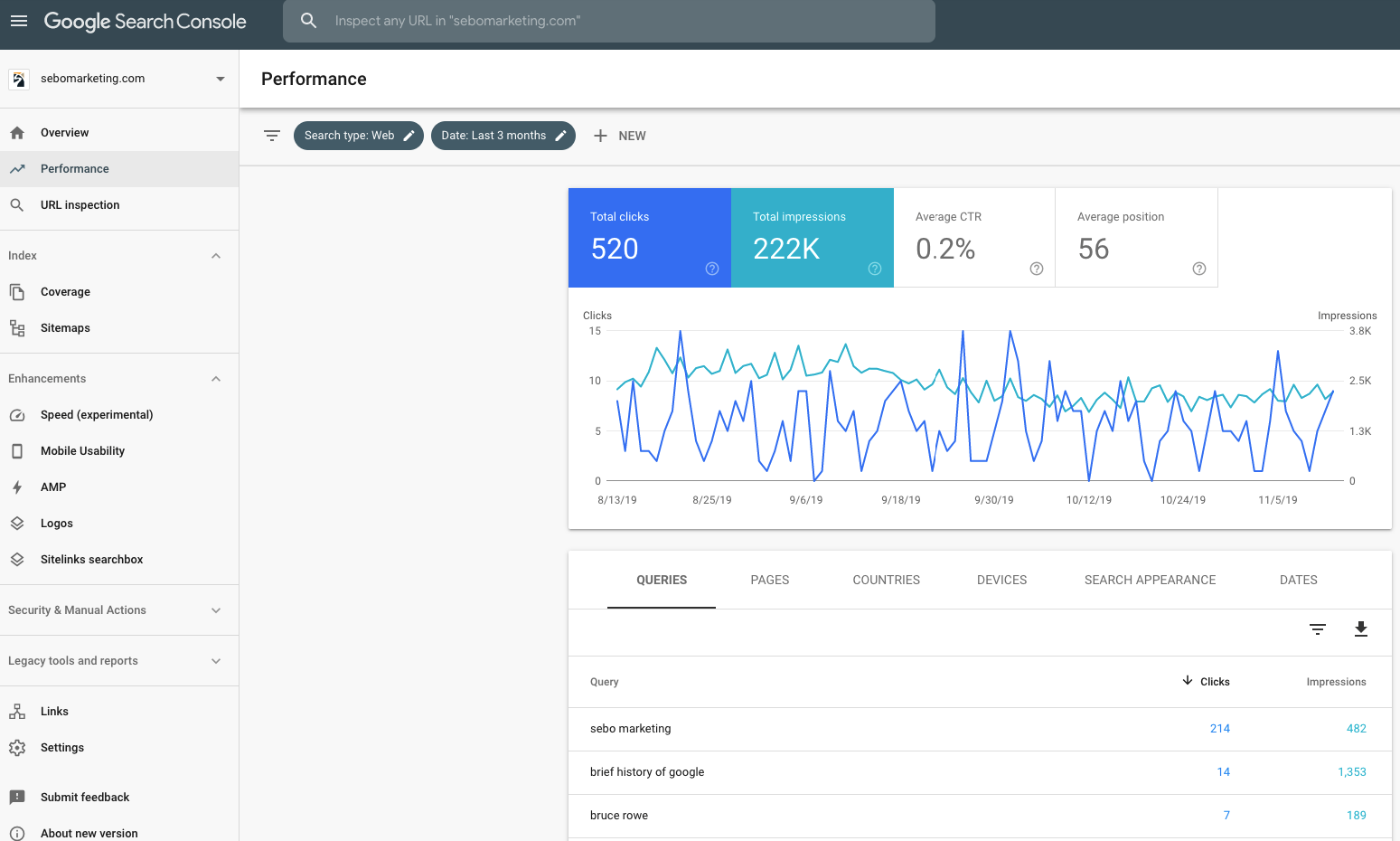
This is one of the most important sections of Search Console, this is where you see keyword data and results – you will see what queries triggered the client’s results for what pages in what country on what device. You will see the number of clicks, impressions, the click-through rate, and position of the client’s results.
The Performance report shows important metrics about how your site performs in Google Search results: how often it comes up; average position in search results; click through rate; and any special features (such as rich results) associated with your results. Use this information to improve your site’s search performance, for example:
- See how your search traffic changes over time, where it’s coming from, and what search queries are most likely to show your site.
- Learn which queries are made on smartphones, and use this to improve your mobile targeting.
- See which pages have the highest (and lowest) click-through rate from Google search results.
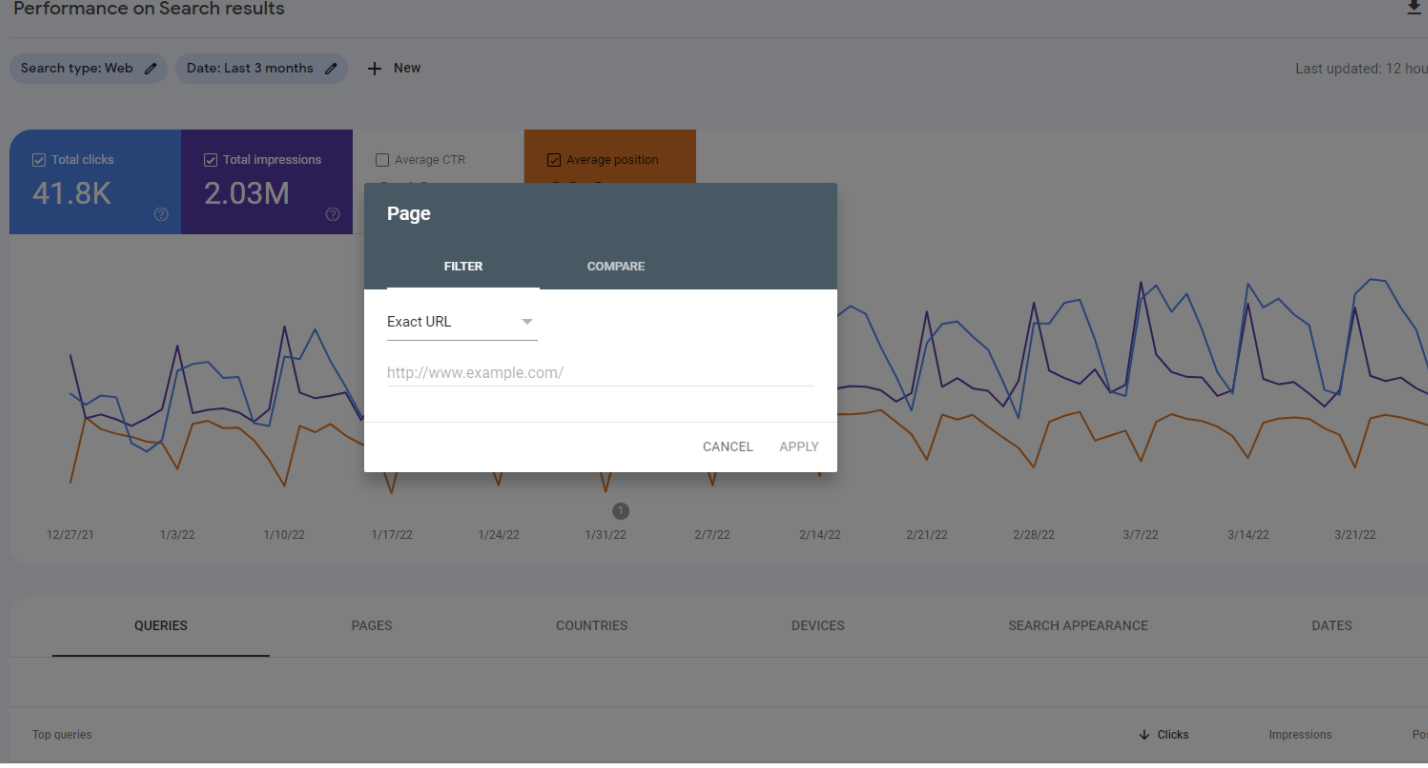
It can be especially useful to look at keywords that are on Google’s radar for specific pages. This can be done by clicking “+ New” and “Page.” Set it to “Exact URL” and type in the URL you are most interested in.
You can also filter your keyword results by editing “queries.” This could be useful if you want to filter out all results that include the brand name (for example). This is done by clicking “+ New” and “Query.” From there you can filter for “queries containing” or “queries not containing.”
If you would like more information about this report refer to Google’s help center.
Indexing
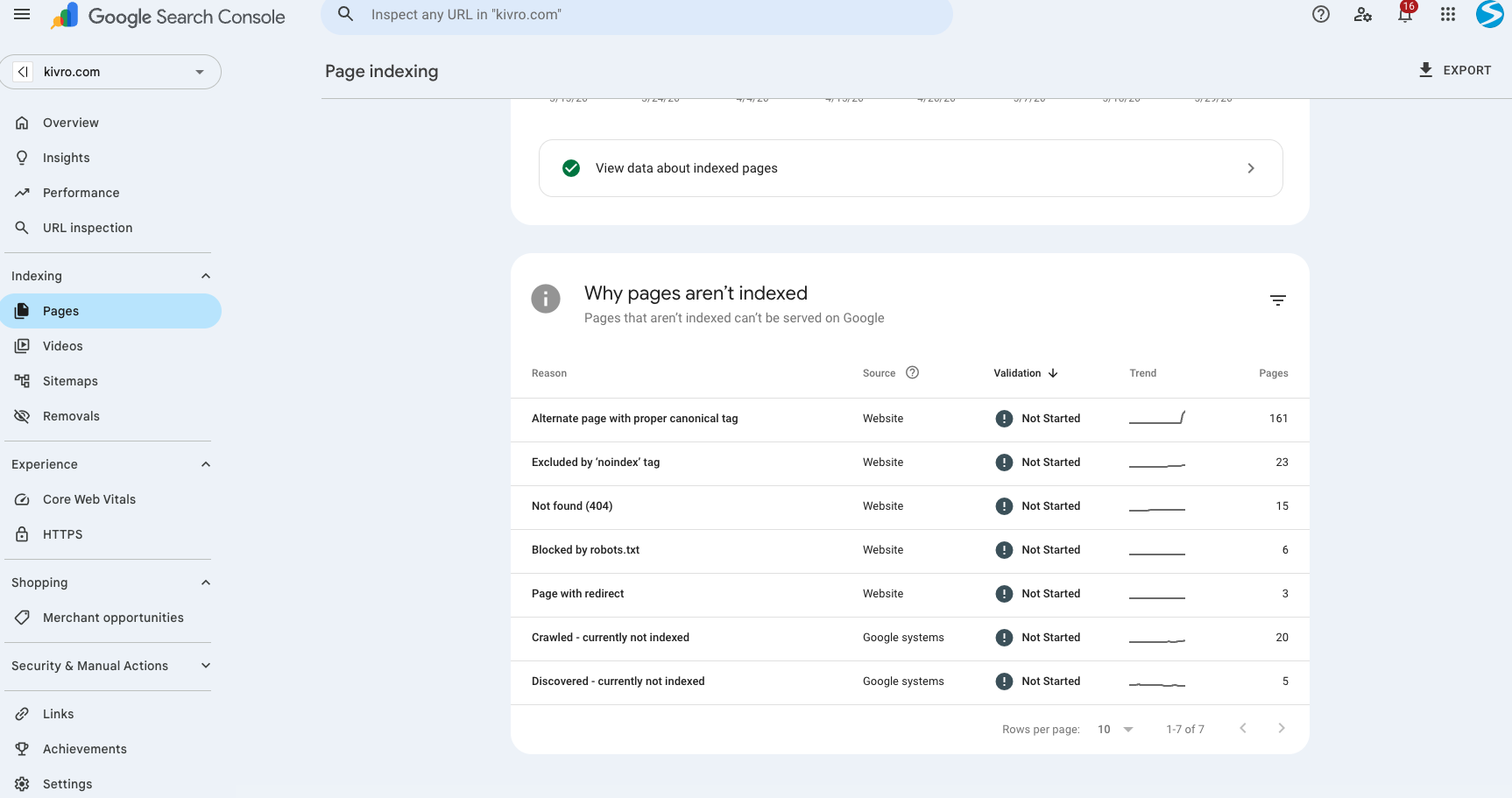
Learn which of your pages have been indexed and any problems encountered when indexing your site.
- Why pages aren’t indexed
- These are pages that couldn’t be indexed by Google. Go through this section to see why and what pages couldn’t be indexed. You especially want to look for 404 or “noindex” tag pages.
Removals
- Here you can temporarily remove URLs from the search results. Use this tool if you want to remove a page from a search result. If you remove the homepage, it will de-index the entire site from Google’s index.
Sitemaps report
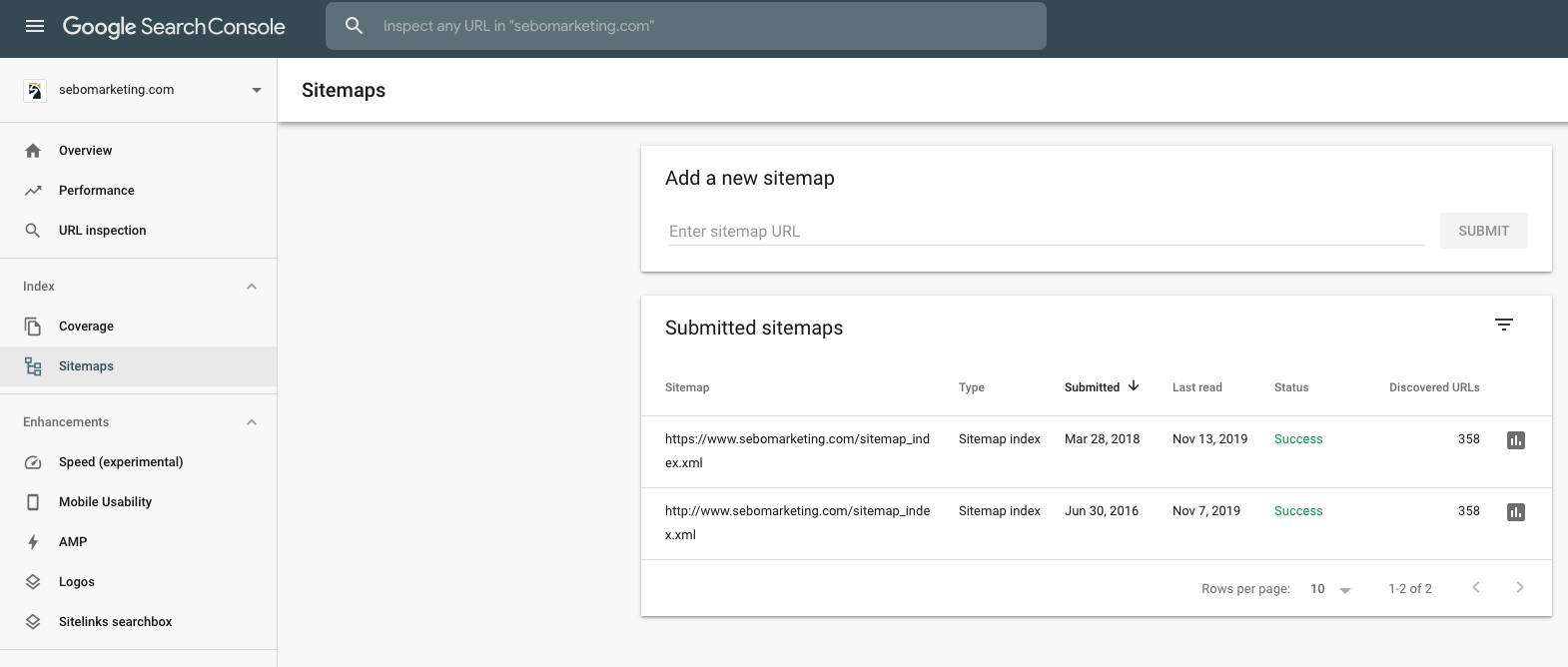
Use the Sitemaps report to tell Google about any new sitemaps for your property, to see your sitemap submission history, and to see any errors that Google encountered when parsing your submitted sitemaps.
“Submitting” a sitemap means telling Google where to find it on your site. You cannot actually upload a sitemap to Google.
What is a sitemap? Is this report for me?
A sitemap is a file on your site that tells Google which pages we should know about. If you have a small site (fewer than 100 pages), it might be easier simply to request indexing of the homepage; as long as all pages on your site are linked from the homepage (or linked from a page that is linked from the homepage, or linked from a page that is linked from a page that… you get the idea), your site should get indexed. We use xml format when uploading sitemaps. Learn more about sitemaps here.
If you would like more information about this report refer to Google’s help center.
Links report
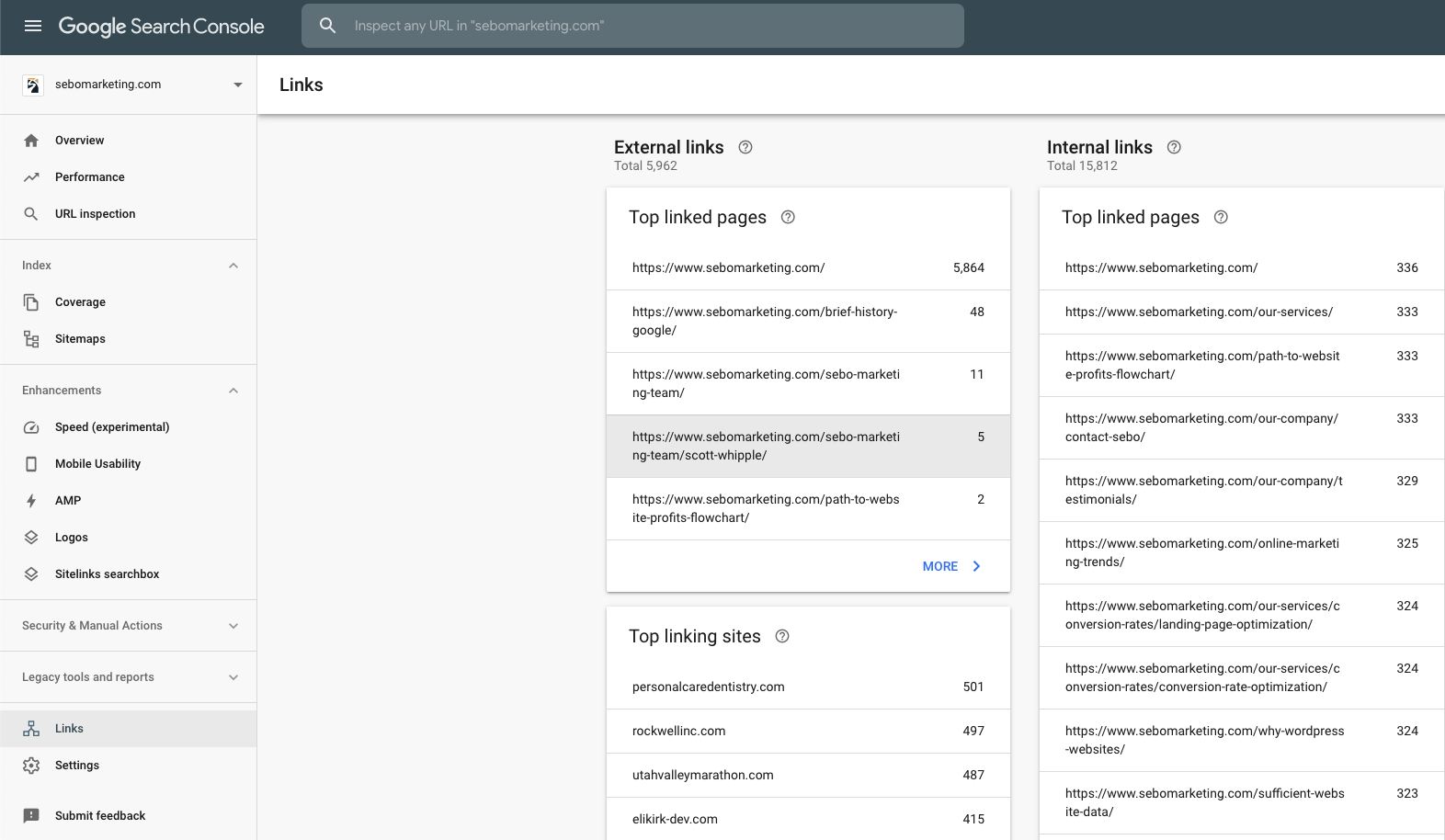
See who links to you the most, your top-linked pages, and more.
Pages on your site are grouped by canonical URL. This means that the anchor tags and possibly some parameters are omitted before grouping.
External Links
- This section shows a number of links coming into the client’s site from other domains. It also shows which domains link the most and what client pages are linked to the most.
Internal Links
- Shows a number of links each page get’s from other pages within the client’s domain.
If you would like more information about this report refer to Google’s help center.

URL Inspection Tool
About the URL Inspection tool
The URL Inspection tool provides information about Google’s indexed version of a specific page. Information includes AMP errors, structured data errors, and indexing issues.
Common tasks:
- See the current index status of a URL: Retrieve information about Google’s indexed version of your page. See why Google could or couldn’t index your page.
- Inspect a live URL: Test whether a page on your site is able to be indexed.
- Request indexing for a URL: You can request that an URL be crawled (or recrawled) by Google.
- View a rendered version of the page: See a screenshot of how Googlebot sees the page.
- View loaded resources list, JavaScript output, and other information: See a list of resources, page code, and more information by clicking the more information link on the page verdict card.
If you would like more information about this report refer to Google’s help center.
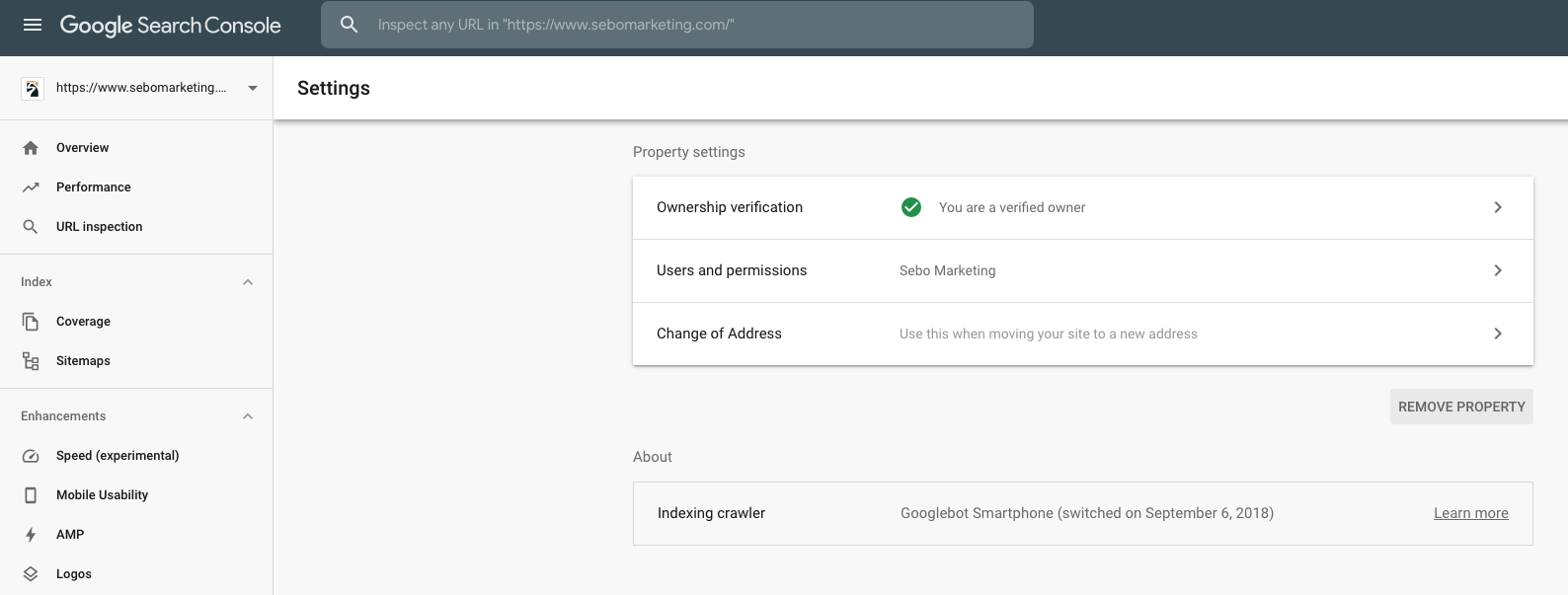
Property Settings
- Users and Permissions
- This section is where you would go to manually add other users or owners to Search Console so they don’t have to go through the verification process.
- Change of Address
- When someone changes domains it is very important that they report a change of address to Google so that they will preserve as much SEO with the change of a domain.
If you would like more information about this report refer to Google’s help center.
Other Reports in Search Console
For the most up to date information, refer to Google’s Search Console Help Center.
Mobile Usability
- Error
- What pages have mobile usability issues & what those issues are
- Valid
- The indexed pages on your site that do not have mobile usability issues
Enhancements
- Speed
- The Speed report shows how fast your pages perform according to real world usage data (sometimes called field data). Click Here for More Information
- Mobile Usability
- Here you will see any issues Google may have found with the mobile usability of the site. In summary, if the site fails this test, the site will not be listed in the search results when the search takes place on mobile devices.
- AMP
- This report helps you fix errors that prevent your AMP pages from appearing in Google Search results with AMP-specific features. Click Here for More Information
- Other Features
- There are other sections that may show up for different clients based on how their site is structured. Click here for more information on how to enable search result features for your site.
Security & Manual Actions
- Manual Actions
- If someone does something that Google doesn’t like but they don’t get penalized for because it’s not part of the Google algorithm, someone at Google can manually penalize the website. This should rarely if ever be an issue with our clients.
- Security Issues
- This will show issues with the domain when Google detects the site may have been hacked, has malware, or some other security issue.
Legacy Tools and Reports
- International Targeting
- Target your audience based on location and language settings. Google looks at the site for hreflang tags.
- Crawl Stats
- Here you will see the stats for Googlebot activity in the last 90 days such as pages crawled per day and kilobytes downloaded per day.
- Messages
- Shows messages from Google about the property.
- URL parameters
- Help Google crawl your site more efficiently by indicating how we should handle parameters in your URLs. This tool should rarely be used and is an advanced action.
- Web Tools
- Ad Experience Report
- The Ad Experience Report is designed to identify ad experiences that violate the Better Ads Standards, a set of ad experiences the industry has identified as being highly annoying to users.
- Abusive Experiences
- Testing Tools
- Ad Experience Report