
Last Updated on December 11, 2025
Sitebulb is a tool that crawls your website and provides in-depth SEO audits. If you remember Screaming Frog, this is a very similar tool.
Although it has various capabilities, we mostly use it for on-page audits. It helps us download a full list of our URLs and view their title tags, meta descriptions, H1s, word count, etc. It’s a great tool for diagnosing on-page issues.
Downloading Sitebulb
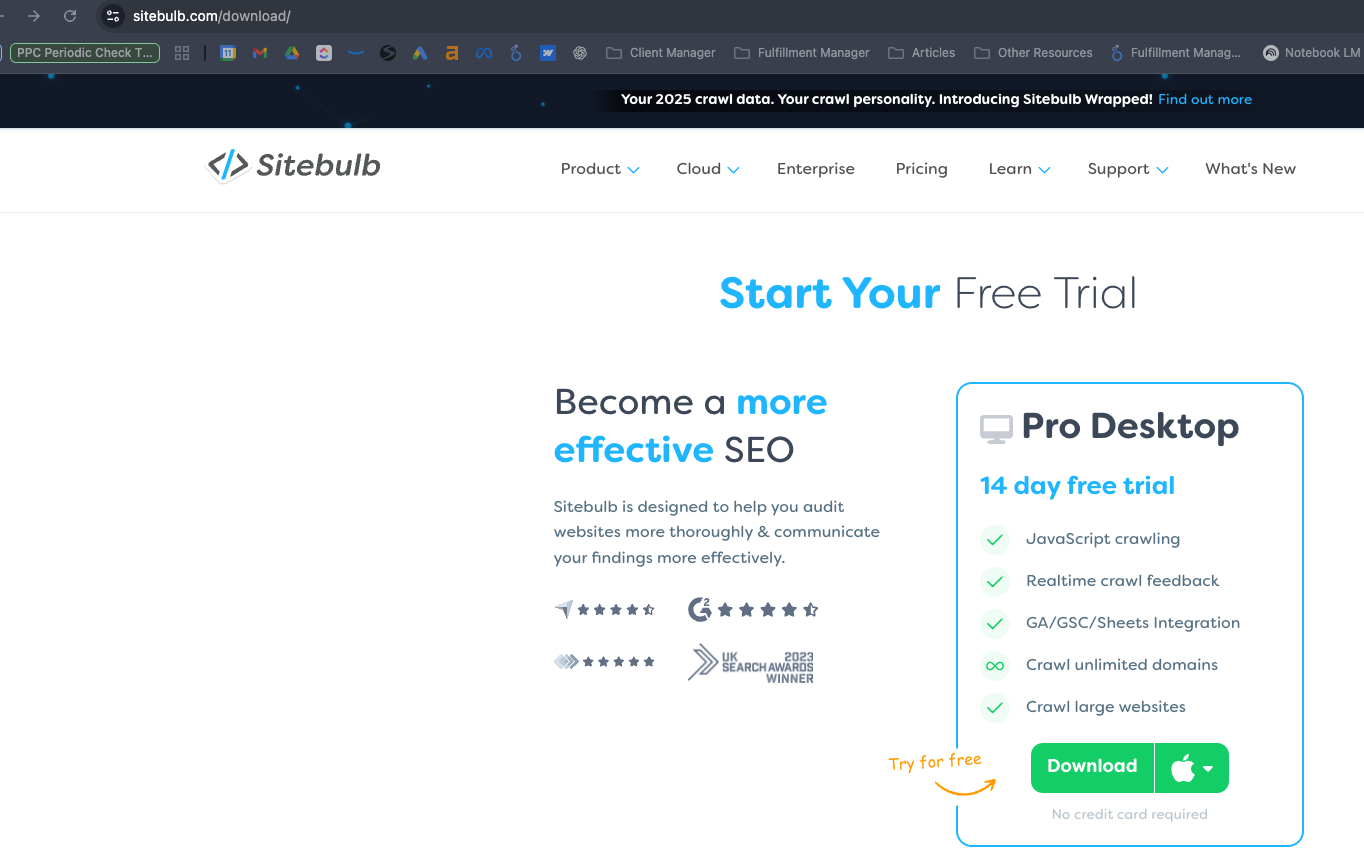
- Navigate to sitebulb.com
- Click “Try Sitebulb for Free” > Download
- Once you have the app downloaded, open it and sign in with the saved “agency@sebomarketing.com” user.
Setting Up an Audit
- When you first log in, you will likely see a different computer logged in. Click “Activate License” (even if it kicks the other person off. If you want to be nice, you can reach out and ask them first, but it should be fine).
- This should take you to “Projects”. If it doesn’t, click “Projects” in the top bar.
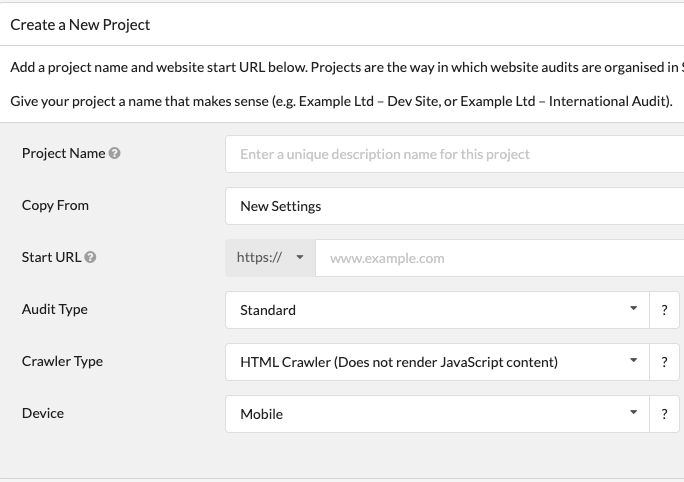
- Click the green “Start a new Project” button in the top right corner.
- Enter in the required information (leave all of the pre-filled settings the same, unless you have a reason to change them).
- You will then see “Audit Settings” (a tooooon of settings that you can mostly ignore).
- If you have a reason to enable any of the settings, do it, but otherwise, the default settings will be enough.
- Click “Start Now” in the bottom right.
Completing the Audit Template
Exporting the URL List
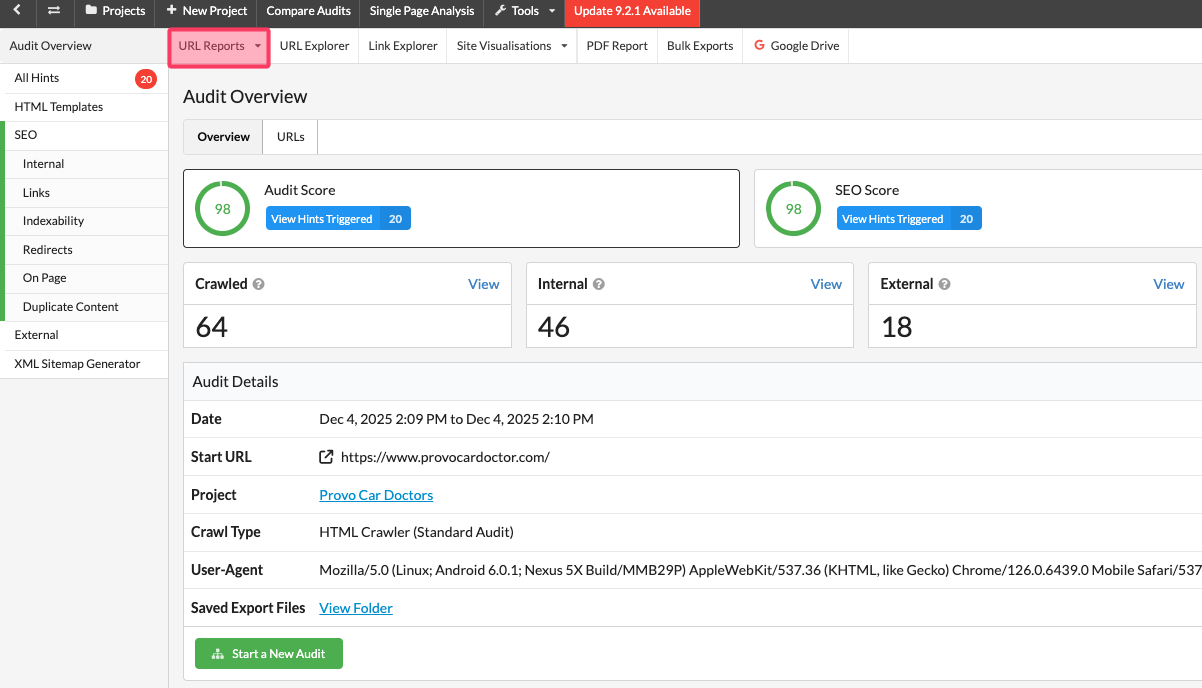
- Once your crawl is done (it can take a while), open up your audit. Your newly opened audit should look something like the picture on the right.
- Click “URL Reports” (highlighted in pink in the image) > Internal
- Then, hover over the “Internal” tab (second option in the top bar) and click “HTML”
- Click the Add/Remove Columns section (highlighted in yellow in the image)
- Add the following columns (select them from the “Available Columns” list)
- Last Modified
- Total Page Size (KiB)
- Meta Robots (Rendered)
- Canonical URL
- No. Internal Followed Linking URLs
- No. Outgoing External Links
- No. Outgoing Internal Links
- No. Outgoing Links
- Redirect Type
- redirect URL
- Time to First Byte (ms)
- Add the following columns (select them from the “Available Columns” list)
- Click “Update Columns
- Finally, export all URLs (green button in the top right)
Filling Out the Template
- Open Google Drive and navigate to the Client’s folder
- Click New > Hover on “Google Sheet” > “From a Template”
- In section “3 – Periodic Checks”, find the template labeled “*Client Name* Sitebulb Audit”
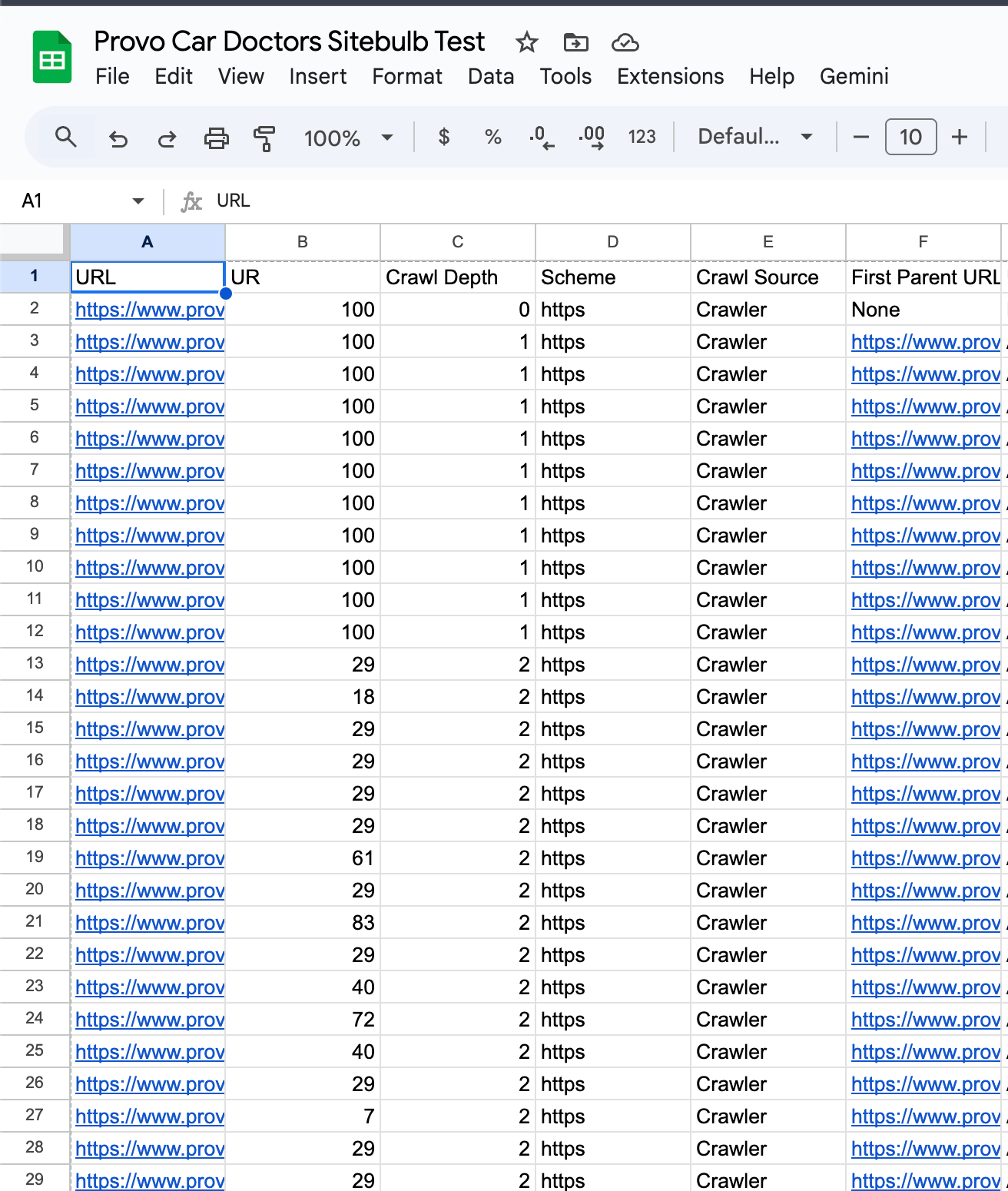
- Copy every cell on your Sitebulb export (including headers) and paste it into the first sheet (“Original Data”) on the Sitebulb Audit Template.
- This will auto-update every other tab (except for the “Target URL” tab. That need to be filled out by the MC (unless the MC has instructed the FFT member to do so))
- Rename the sheet and save it