
Google Business Profile (formerly Google My Business) allows a company to show up in the Business Profile section of Google Search as well as in Google Maps search results. This is essential for any business interested in local SEO with a physical location people can visit.
Last Updated on September 11, 2026
Proper GMB Category Associations
Google Business Profile allows the verified user to choose their primary and secondary categories from a list. This list includes categories such as Abbey, Diesel Fuel Supplier, Yamaha Motorcycle Dealer, and nearly 4000 others. When choosing a category for a client there are a few things to keep in mind:
- You can have up to ten categories for a business, but only one of those can be the primary category. The primary category is given the most importance by Google’s algorithm, and switching to a narrower, more accurate primary category is one of the single biggest levers you have for local search visibility.
- When choosing a category be as specific as possible. Instead of choosing Restaurant, choose Egyptian Restaurant. Instead of choosing Clothing Store, choose Men’s Clothing Store. You get the point. Be specific.
- Add the least number of categories as possible to describe your core business. The more categories you have, the weaker each individual category gets in a potential customer’s search for businesses that do what you do.
- Describe your business, not your services or amenities. For example, if you are adding a restaurant to the profile and that restaurant has a bar, you shouldn’t add Bar as a category because that’s not what the business is. That is an amenity. There is a caveat to this however. In Google’s own words, “if your business is a health club that includes a cafe, don’t add the category ‘Cafe.’ Instead, the operator of the cafe should create their own listing with ‘Cafe’ as their primary category.”
Another local pack ranking factor is how well the client’s primary category matches a broader category of the search. For example the client’s primary category is restaurant and the search category is pizza. Google understands that when someone searches for pizza they are looking for a restaurant much of the time, so the client’s result is more likely to show.
In summation, when choosing categories be specific, add only the most important categories, and describe your business not your amenities. Here is a bit more on choosing a business category.
GMB Business Name/Title
Google wants business owners to enter their actual business name and nothing else. Don’t use taglines, location information, or mention products/services in the business name unless it’s actually a part of the name. Google sees this as spammy and your listing could get penalized. Some SEO practitioners say that adding keywords into your business name will help rank you better, but it’s not wise and could hurt your client. Instead, include the keywords in the business description.
Completeness of GMB Listing
Obviously, it is beneficial to have a complete Google Business Profile. Following are other elements we have yet to discuss that should be optimized:
NAP (and service area/hours) – NAP stands for name, address, phone. It is very important that a client’s NAP is consistent across the web. That means that their website has the same address, name, and phone number as their Business Profile and other business citations. Also make sure to set up accurate hours, and, if the client operates a business that travels around a service area, make sure to set up a service area rather than a business location.
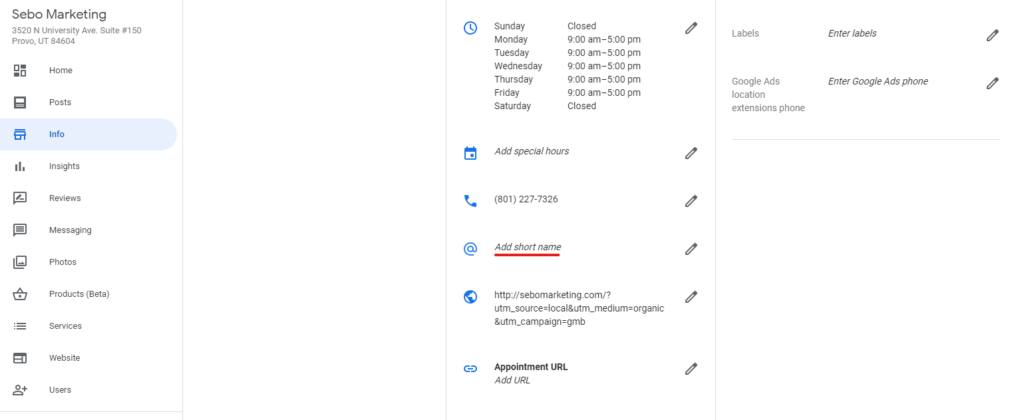
Description – Here you should describe your client’s business as if the reader knows nothing of what the business does. Use the most important terms but don’t keyword stuff. It’s not believed that Google uses the description field as a factor in search rankings, but it can help convert those who see the business listing, so it’s still very important. Don’t focus on promotions, prices, or sales. Don’t use any URLs. You can write a description of up to 750 characters, however, only the first 250 or so will display before the visitor clicks “More.”
Photos – Google has pretty specific guidelines when it comes to adding photos to a client’s profile. You should add category-specific photos that spotlight features of the business that a client’s customers would use when making purchasing decisions. Following are types of business-specific photos Google suggests, minimum number to add, and tips.
- Exterior photos — Add at least three. Capture a photo from each direction a customer might approach the business. Upload photos that show the business at different times of day.
- Interior photos — Add at least three showing what the business interior feels like. Capture photos that truthfully show what it’s like to stand in the business as a customer.
- Product photos — Add at least three. Showcase items that are the most popular. Try taking evenly lit photos.
- Photos at work — Add at least three. Capture the team providing different types of services to customers, and any specialty services the client delivers.
- Food & drink photos — Add at least three, if it applies. Showcase the most popular food.
- Common areas — Add at least one photo of each of the client’s common areas (spa, gym, breakfast room, etc.). Capture the atmosphere of the common area.
- Team photos — Add at least three photos showing the management team and employees. Show something a little less formal to humanize the business and give potential customers a feel for what it’s like to work with them.
Most local businesses should be adding between 10–12 photos at minimum, and it’s a best practice to upload at least one new image per location each month if possible. Add a logo and a cover photo, too. The cover photo is the only photo you can actively choose, so make sure it best represents the business. Photo specs:
- JPG or PNG
- Between 10 KB and 5 MB
- Recommended resolution: 720 px tall, 720 px wide. Minimum: 250 px tall, 250 px wide.
- The image should be well lit and have no significant alterations or excessive filters.
The main takeaway is to take good photos of all aspects of your business and try to represent reality as well as possible.
Reviews – Reviews are important, both for boosting the local pack and for increasing organic exposure. We can also place reviews on the client’s website (in the footer or somewhere similar), and Google may use reviews in the organic results as well. A couple best practices help generate reviews:
- Request reviews from customers through a review link specific to the client’s business. This is generated in the “Get more reviews” section of the profile and can be shared directly with customers.
- Suggest that the client take an active role in the management of their profile. Let them know how important it is to engage with customers online, which means replying to reviews left on Google.
Google may also use information found while crawling the web to generate automatic reviews, so it’s useful for the client to get reviews from any reputable directory or review platform.
Posts – Posts are short updates that can share news, an offer, an upcoming event, or a product. A few tips:
- Stick with 80–100 words per post.
- Follow best SEO practices and use appropriate keywords, with the most important messaging toward the front.
- The best image size for a post is 720 x 720, centered. Don’t upload an image smaller than 250 x 250.
- Posts including a phone number in the description may get rejected by Google.
- Preview the post before publishing to make sure it looks good.
- A post is an opportunity to talk directly to the customer, so keep the tone natural and conversational.
- Make sure the landing page you send visitors to matches the content on the post and meets a visitor’s expectation.
- Posting weekly is a solid cadence. Posts don’t directly move your position in the local pack, but they lift engagement and give customers a reason to see your business as active.
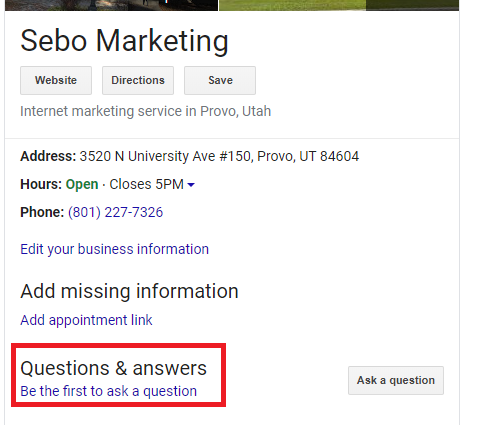
Q&A – There’s a section on the profile dedicated to questions crowdsourced by real people. Potential customers can ask questions and answer questions already asked. You, or the client, can periodically check this section and answer questions, which gives you control over the answer. Don’t keyword stuff when answering, just answer directly. To find it, Google the name of the client’s company; the knowledge panel will show a section for questions and answers.
You can also use this section proactively, seeding it with commonly asked questions and answers, so potential customers see them before they ever reach the site.
Social Media – In some knowledge panel search results, social media profiles appear alongside local business information. Google gathers this information automatically for eligible businesses and may include it to give customers a more detailed overview. To help this happen, make sure the business name used on social profiles matches the profile name, complete any social verification process, and consider adding structured social profile markup to the client’s website.
GMB Features Specific to Client’s Industry – Some features are specific to an industry. For example:
- Hotels have different knowledge panels.
- You can add a menu to a restaurant.
- Many individual businesses can add details on products and services.
- If it’s a service-area business (like carpet cleaning), you can hide the address and set a service area instead.
It’s worth exploring the profile to make sure you’re using all the features your client’s business qualifies for.
Getting Access to a GMB Listing
The following steps apply if the client has access to their GMB account. Send them the following steps to add us as “Manager”.
On Desktop:
- Sign in to Google Business Profile at business.google.com.
- Click the three-dot menu on the profile panel, then select Business Profile settings.
- Click People and access (sometimes labeled Managers).
- Click Add.
- Enter the email address of the person to add. This can be a Gmail address or a work email tied to a Google account.
- Select their role: Owner or Manager. Owners can add/remove users and delete the profile; managers can’t.
- Click Invite. The invitee gets an email and gains access once they accept.
On Mobile:
There’s no standalone Business Profile app anymore; management now happens through the Google Maps app.
- Open the Google Maps app and tap the Business icon.
- Tap View business profile, then scroll to More.
- Tap Settings, then Managers.
- Tap the + icon.
- Enter the email address and select the role, Owner or Manager.
- Tap Invite.
This section shows all active managers and pending invitations, on either platform. You can cancel a pending invite or change someone’s role from the same screen.
Editing a GBP Account
This video was created when GBP was Google My Business. It will show you some basic things but note that the interface and terminology might be slightly different.