
Last Updated on July 31, 2026
This training will teach you how to create an ad in Meta. It will walk through the whole process from creating a campaign, creating an ad set, and then an ad. If you are only interested in the ad creation step, skip to this section.
Navigating to Campaign Creation
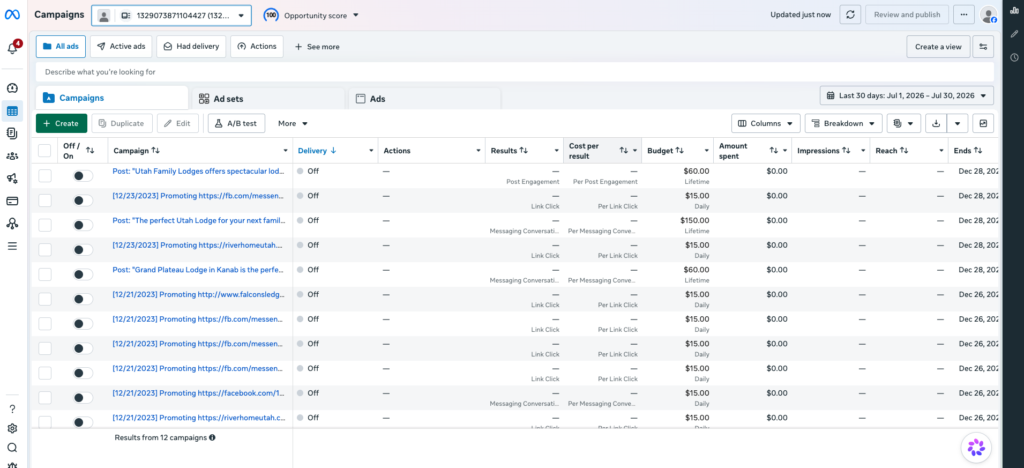
The right spot in meta to create a campaign exists in the ad manager. Make sure you select the correct account at the top that you want to create an ad for. Then, press the green create button near the top left of the screen and select your campaign objective (learn more about how to pick a campaign objective in this training).
Steps Within the Campaign Level Window
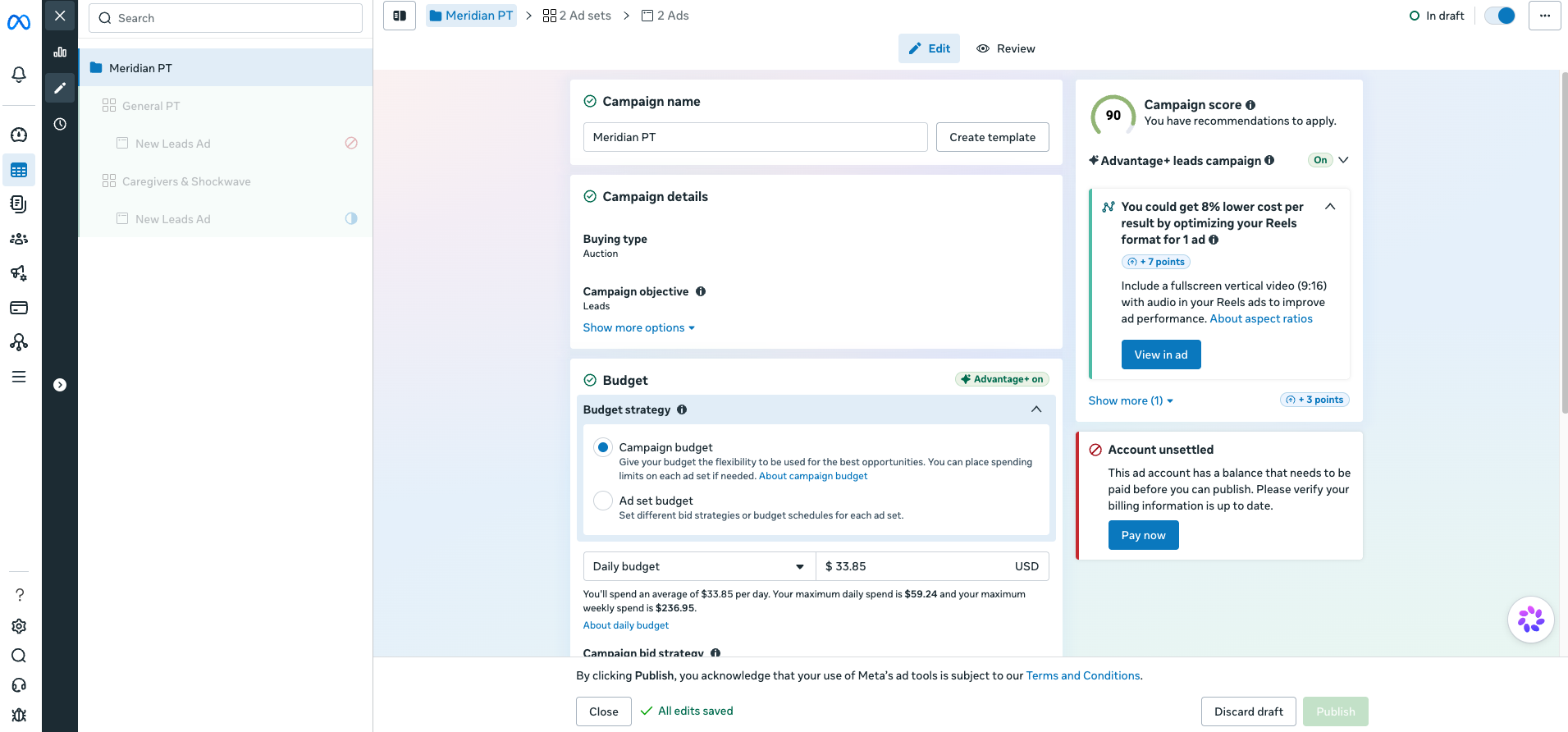
- Name your campaign.
- Choose your budget & bid strategy.
- Usually will choose campaign budget unless there is is a reason that you want to differentiate bids or budgets based on different ad sets you create within the ad.
- You can choose a daily or lifetime budget. If it is a one-off campaign with a set end date, usually it is a lifetime budget, but for a client that is paying monthly, it is usually a daily budget like in google ads. Follow MC direction if given.
- Most of the time, you will probably just want to click highest volume or value if it is the first campaign you are setting up, unless the MC wants you to do a different one. This is comparable to max conversions in google ads.
- Most of the time, we will not have to worry about A/B testing or special ad categories. Special ad categories are only for certain types of businesses. Just check to see if yours applies.
Steps Within the Ad Set Window
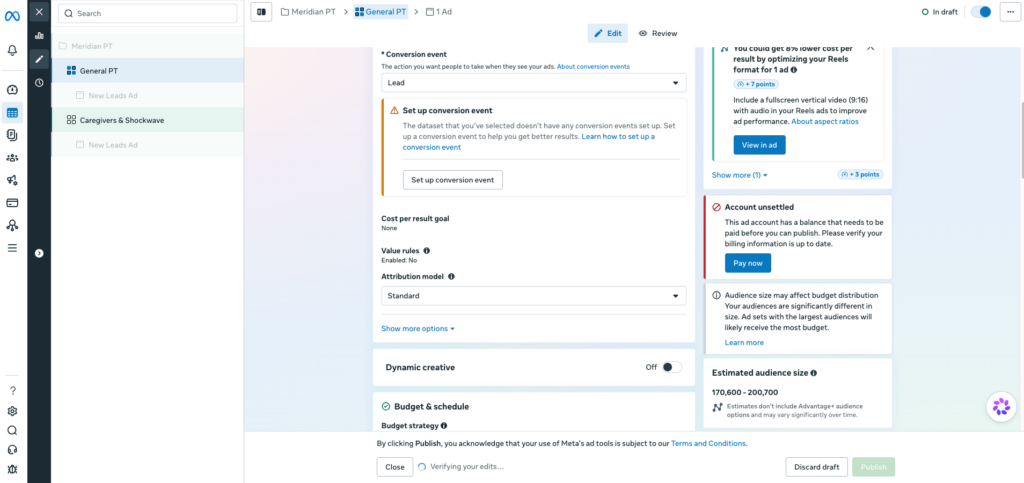
- Name your ad set
- Choose the conversion location (in most cases, this will be website)
- Choose your performance goal. Most of the time, it is best to default to maximize number of leads, unless this is a client that wants to operate off of a max conversion value mindset
- Choose the Pixel that will track the data (refer to other trainings to check if the pixel is working)
- Choose your conversion event (usually lead for businesses tracking form submissions)
- Keep the attribution model at standard
- If the campaign you are creating has an end date (or a start date), choose it underneath the budget & schedule section. You are able to choose a maximum or minimum spend limit for the ad set if this is applicable for the campaign you are creating
- When selecting your audience, it is important to know the difference between suggested audiences and actual audiences. If you are using a saved audience, feel free to add it in here.
-
Before the section that says suggest an audience is the actual audience of people that Facebook can pull from to show people your ads. You can choose things like the location your ad shows and the minimum age (18-25) who can see your ad. You can also exclude any custom audiences here.
-
In the audience suggestion section, you can suggest which groups of people are more likely to convert into leads. Here you can change to the ages, genders, or detailed targeting you think this campaign will perform best with.
-
For detailed targeting, you can browse demographics, interests, or behaviors that these people may have. It will not always have every target you personally think is valuable for the client, but there are a lot of useful targeting options here.
-
-
- The placements sections allows you to optimize budget allocation across different ad placements through precise bidding and control adjustments. Instead of entirely disabling specific platforms, advertisers can create Placement Value Rules to dynamically scale bids up or down based on a surface’s value to the business. Additionally, the Account Controls feature allows for strict platform exclusions, though a default toggle allows Meta to route up to 5% of the budget to excluded placements if the AI predicts higher performance. Most of the time, we will not need to touch this section when creating an ad
Creating the Ad Itself
- Name your ad.
- Most of the time, we will not run partnership ads, but this is where you run ads directly from an influencer or creator’s handle. Toggling this on uses dual-brand attribution to turn authentic partner content into ads, boosting audience trust and conversion rates.
- Choose the Facebook page (and other social medias if applicable) that you want to run this ad.
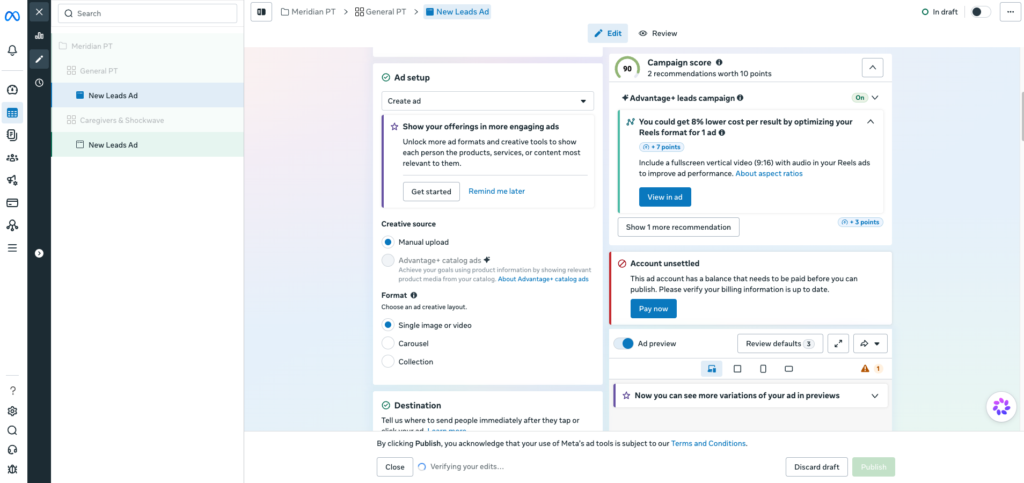
- Then to the fun part, creating the content in the ad. Pick manual upload for most ads and then choose your format. Format options are:
-
Single image or video: this is self-explanatory and is usually the default for most ads.
-
Carousel: a bunch of photos or videos the user can scroll through that each have a specific headline and description for each.
-
Collection: a mobile-only ad format designed for e-commerce that pairs a large main cover asset with a row of smaller supporting items.
-
-
Choose your destination (where people are sent when they click on your ad). Most of the time, this will be a specific page on the client’s website and you will not need to add a display link or any browser add-ons.
-
Then you will be able to upload your content. Once you upload all your media, it will prompt you to add a bunch of things. All you really need to worry about here is that the video/photo formatting looks good. We want to be able to see all the important parts of the photo and video. If possible, crop them to the formats they suggest as those are better for different placements in Facebook. They will look better than keeping the original formatting.
-
Then, either write the content, or you can go to your favorite AI, such as Claude under the copywriting project, and ask it to write you some relevant primary text, headlines, and descriptions for your ad. Paste all these in.
-
Pick the call to action that makes the most sense for the client.
-
Ignore the rest of the ad creation process unless told specifically not to.
Duplicating Ads or Ad Sets
Duplicating an ad set or ad is easy. In the left sidebar when you create your ad, there is a duplicate button. It also exists in the 3 dots next to it. If you want more ads in an ad set or more ad sets in your campaign, you can do this here. Make sure when you are done, that you change any of the settings that are not relevant to the new ad set or ad.
Troubleshooting Publishing Issues
Sometimes, Meta can be very tricky when you try to publish a campaign or an ad. If the error is not easily solvable, sometimes you need to just delete the content you created, try again, and hope that it works. AI can be your best friend in figuring out why it won’t publish and how to fix it if you run into problems like this.